During the session
Messages, time limits and the court fee
Tell the whole room something at once, keep games to time, and collect the fee without a clipboard.
For hosts3 min
- 1
Post a message to the room
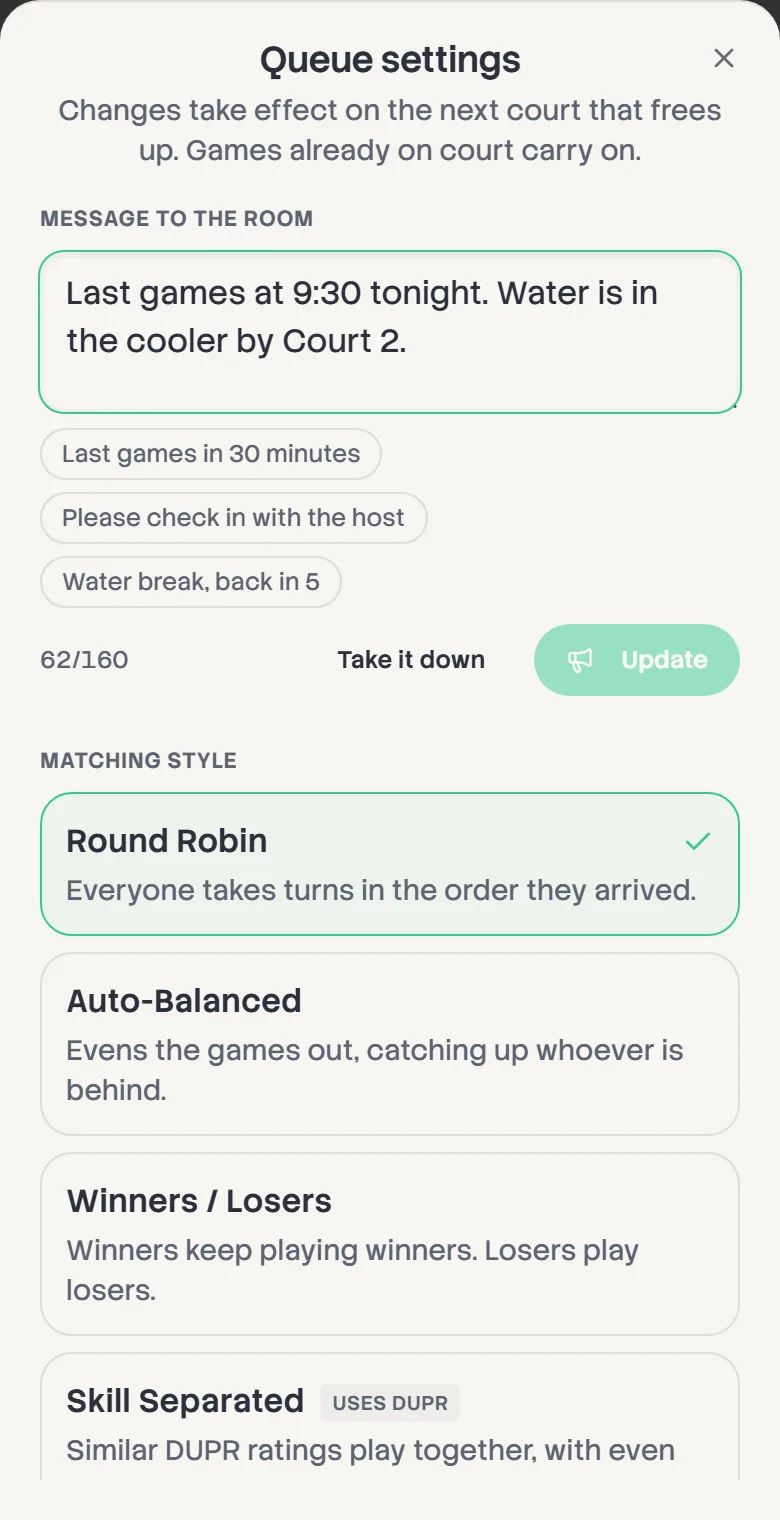
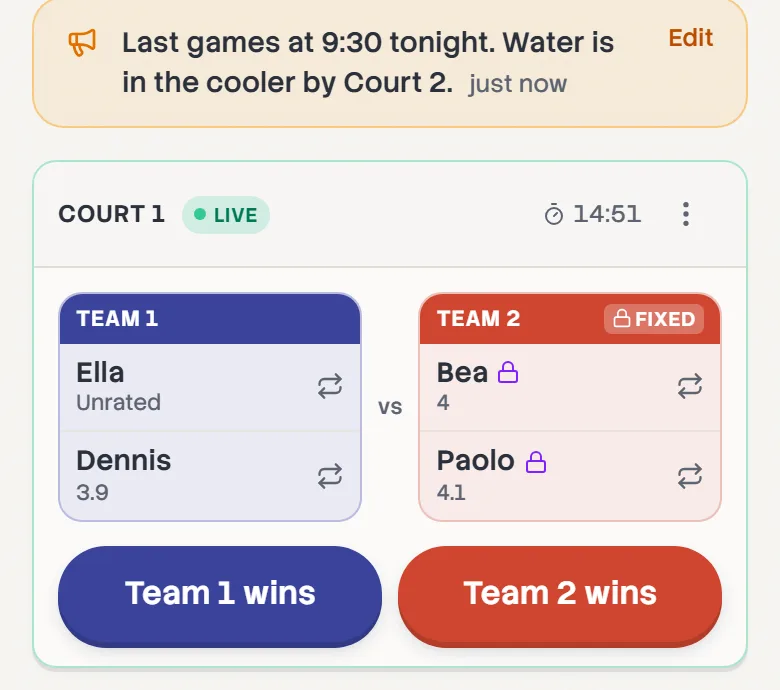
In Queue settings, write it under Message to the room and tap Post, or start from a ready-made one like Water break, back in 5. It goes to the top of every board in the room and across Courtside. Tap Take it down when it's done with.
Tap Edit on the message on your board to come straight back here.
- 2
Give games a time limit
Under Game time limit, pick the minutes a game should take. Each court then counts down instead of up, turns amber in the last couple of minutes, and red once it's over, on everyone's board and on Courtside. Nothing ends on its own: you still record the result.
- 3
Set the fee and your payment QR
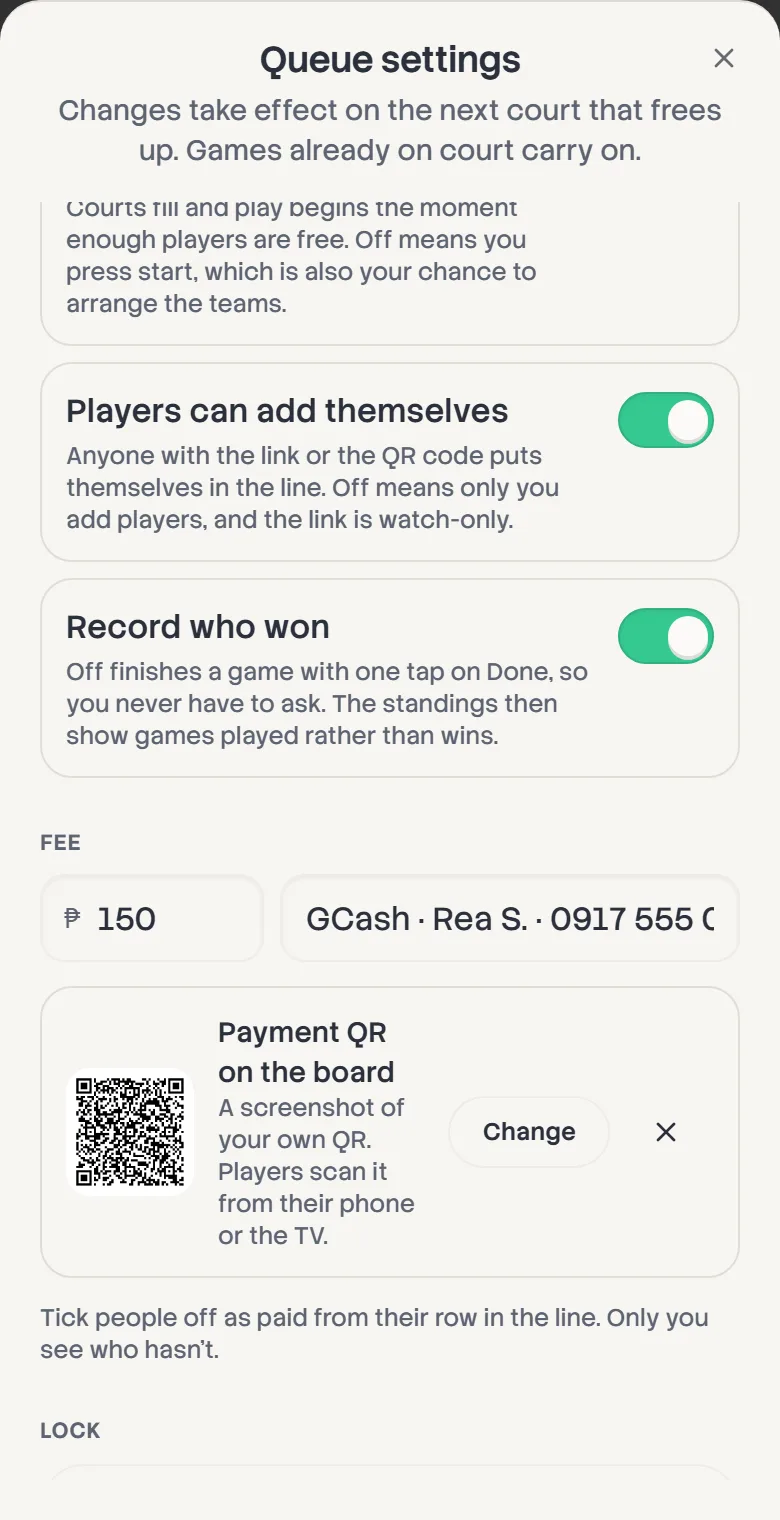
Under Fee, enter what each player pays and how to pay you, like your GCash name and number. Tap Add and pick a screenshot of your own GCash, Maya or bank QR: qStack reads the code out of it, and players get a clean copy to scan or save. Use the Receive money QR, not one made for a single payment.
Only a real payment QR is accepted, never a link, so nobody can swap in somewhere else to send the money.
- 4
Tick people off as they pay
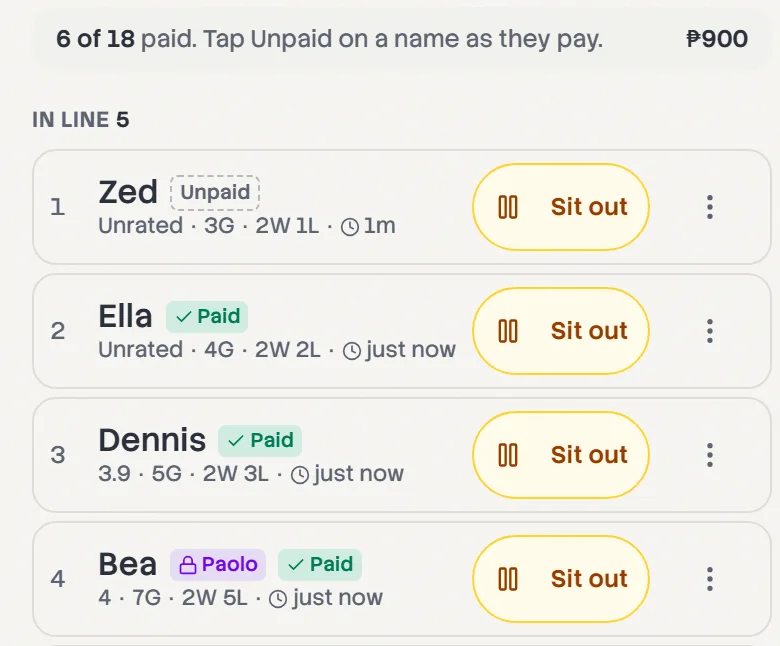
Every name in the line now has Unpaid beside it. Tap it as someone pays and it turns to Paid. The count at the top tells you how many have paid and what you've collected. Players see only their own mark, never anyone else's.
Somebody on court? Open On court in the line to reach their name.
- 5
Put it on your venue's page
Own or manage the venue on Courtogo? Sign in, and pick it under Venue at the bottom of Queue settings. While the board runs, the venue's Courtogo page says open play is on now and links to the board.