Getting started
Join a board as a player
Scan, type your name, and see when you're up. No app, no account.
For players1 min
- 1
Scan the code
Scan the QR code the host is showing, or open qstack.courtogo.com, tap Start a board, then Join with a code and type the six-character code.
- 2
Put yourself in the line
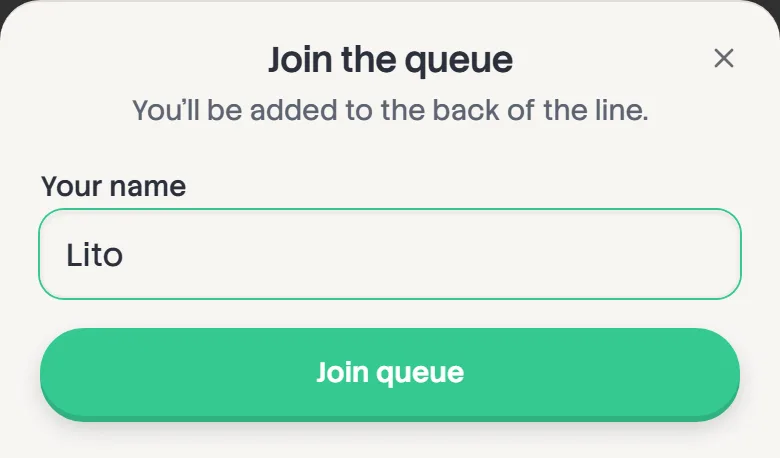
Tap Join this queue, enter your name and tap Join queue. You go to the back of the line. On a Skill Separated board you're also asked for your DUPR. Leave it blank if you don't know it.
Somebody already using your name? Add a last initial, like "Nicole R.".
- 3
Watch for your turn
Your row is marked you, and Up next tells you who you're with and who you're against. A group marked May change can still change as the line moves.

- 4
Get a buzz when you're next
Tap Turn on beside Get a buzz when you're next and allow notifications. Your phone buzzes when your group is up next, and again with the court number when your game goes on, so you can wander off to the water cooler.
On an iPhone, add qStack to your Home Screen first (Share, then Add to Home Screen) and open it from there. iPhones only send alerts to Home Screen apps.
- 5
Pay the host
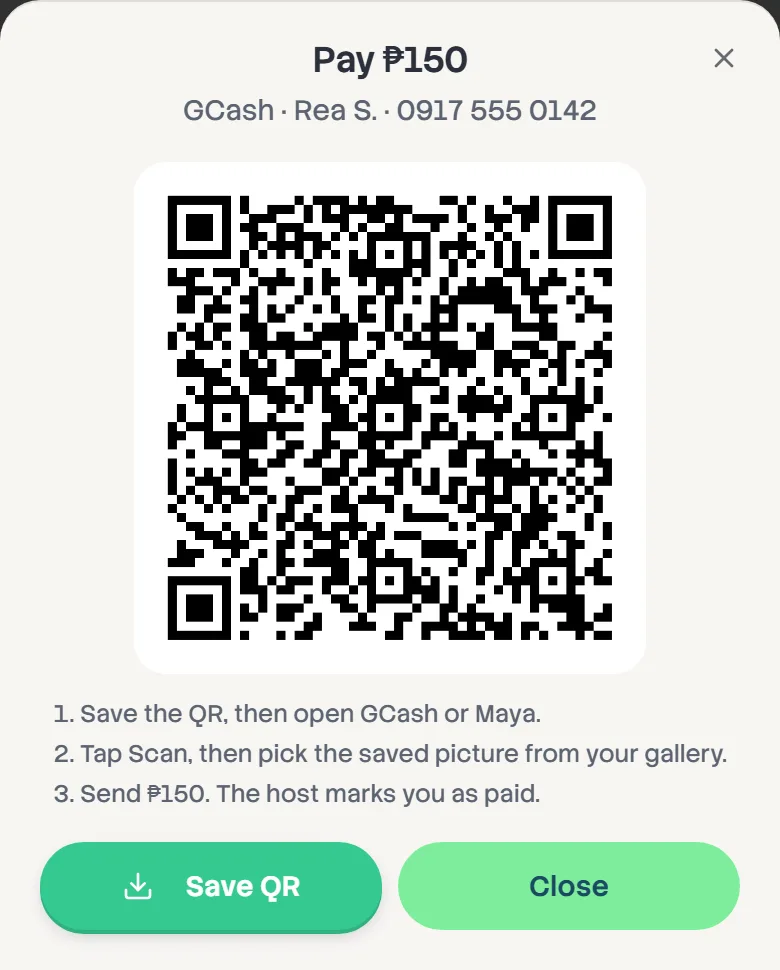
If the host has set a fee, your board shows it. Tap How to pay, then Save QR. In GCash, Maya or your bank's app, tap Scan and pick the saved picture from your gallery. Once the host marks you as paid, your board says so.
- 6
Taking a break
This phone remembers which player you are, so you can tap Sit out on your own row to step out without losing your place, then Back in when you're ready.
- 7
Keep your games
Nothing needs an account. If you want your games kept on your own record from one session to the next, sign in with Courtogo. Your history shows under qStack Record in your dashboard.