Getting started
Put the board on a TV with Courtside
Show the courts, who's up next and the QR code on a big screen, so nobody has to crowd round your phone.
For hosts2 min
- 1
Open Courtside
Courtside is the board made for a TV: big names, no buttons, and it updates by itself. On a laptop or tablet, tap Courtside at the top of the board, beside Standings, and it opens in a new tab. On a phone, it's Show it on a TV in the share sheet.
- 2
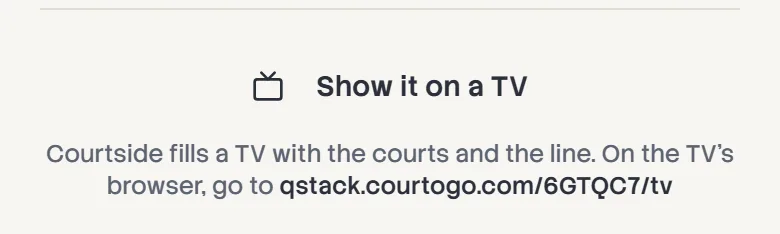
Or type it on the TV
A smart TV with a browser doesn't need a laptop. Go to the board's address with /tv on the end, such as qstack.courtogo.com/K7MP2Q/tv. It's the same address the share sheet shows you.
- 3
Go full screen
Move the mouse to bring up the controls and tap Full screen, or press F on a keyboard. The controls and the pointer disappear after a few seconds, and the screen stays awake while Courtside is open.
On a phone or tablet cast to the TV, turn it sideways first. Courtside is laid out for a wide screen.
- 4
What the room sees
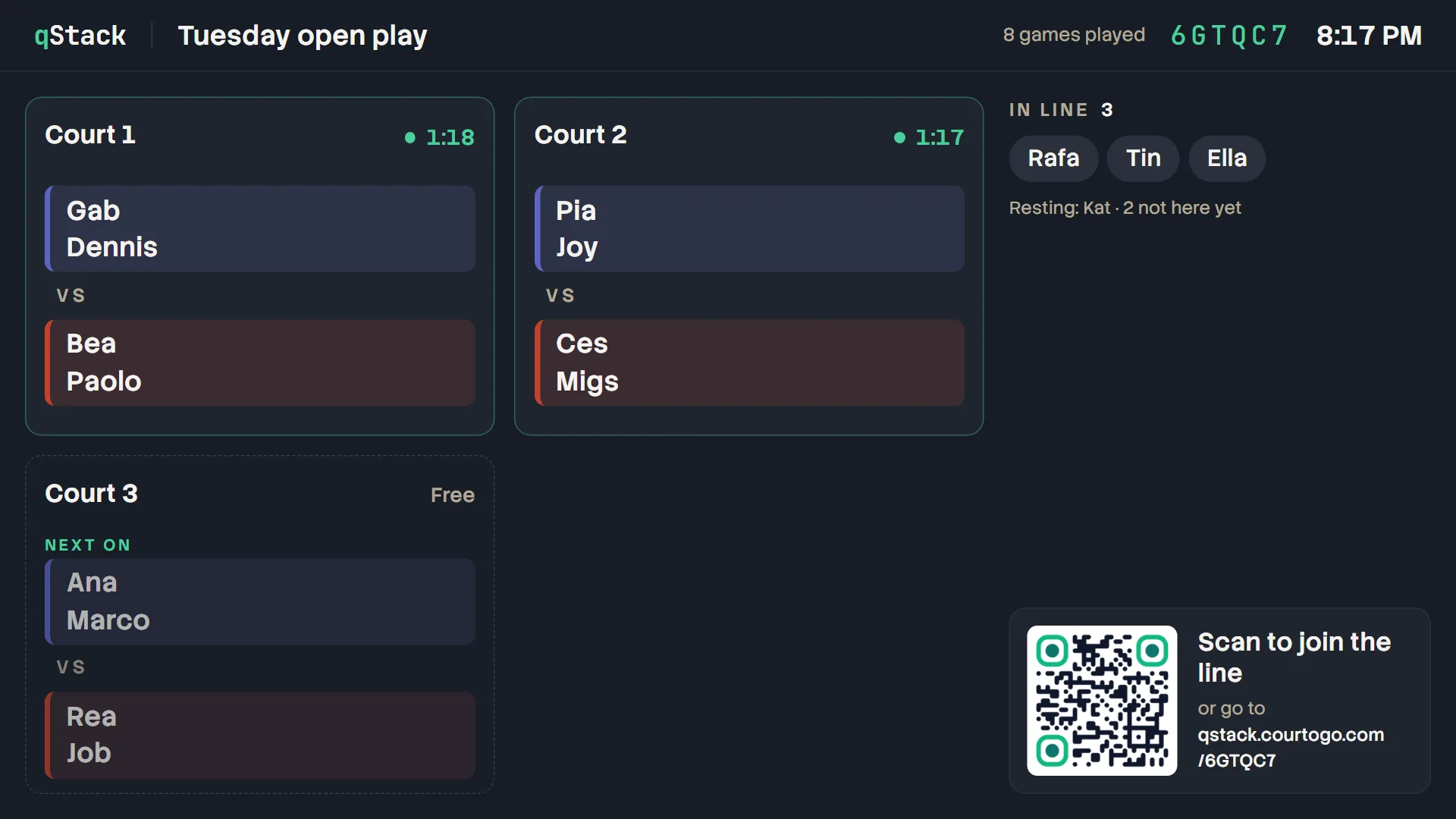
Each court with who's playing and how long they've been on. A free court shows who's next on it. Beside them are the groups waiting for a court, everyone else in line, and a QR code people can scan to join the line or follow the board on their phone. When you end the session it switches to the final standings.
Courtside never shows host controls, even on your own laptop, so it's safe on a screen everyone can reach. Run the board from your phone as usual.
- 5
It calls people up
When a game goes on, Courtside fills the screen with the court number and the four names for a few seconds. Move the mouse or press a key to bring up the controls at the bottom, then switch Sound on: the TV chimes, then reads out the court and the names ("Court 2: Ana and Marco, versus Bea and Paolo"), and remembers the setting for next time. Somebody missed it? Call again (or the C key) repeats the last game, and tapping a court on the TV calls that one. No TV? The speaker button at the top of your own board (Call games on a laptop) has your phone read each game out as it starts, and Announce on a court or an Up next group reads that one out on the spot.
TVs only play sound after someone has pressed a key or tapped the screen once, so do that when you set it up.
- 6
Your message and the fee, on the TV
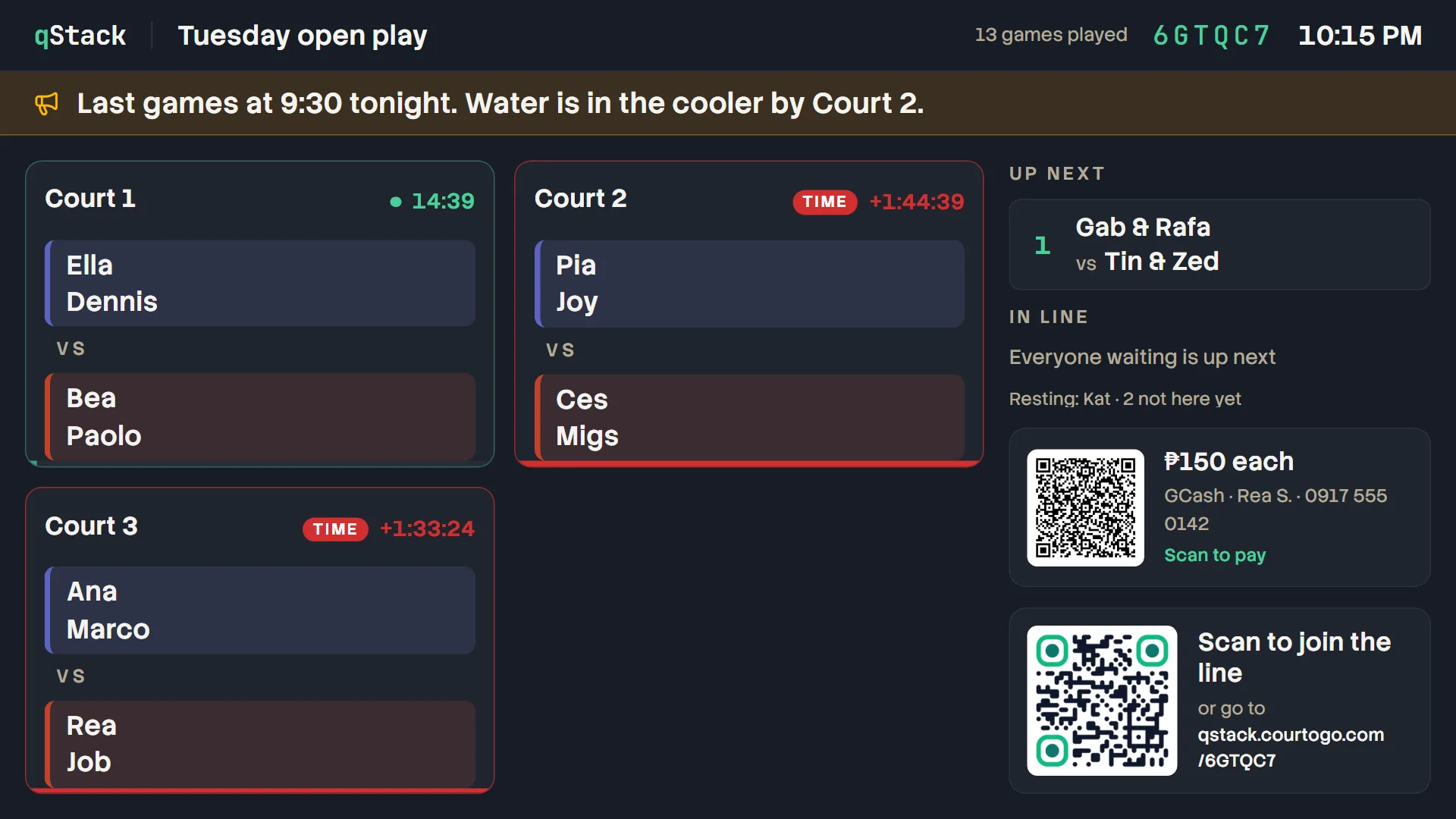
A message you post from Queue settings runs across the top, and scrolls when it's long. Set a fee with your payment QR and it sits beside the join code. With a time limit, every court counts down and turns red once it's over.
- 7
Several boards on one TV
Running a board per division? With two or more going, open the board switcher from the board's title, or the start page, and choose Show both on one TV (or Show all 3 on one TV, and so on). Up to four sit side by side, each with its own courts, line and QR code.