Getting started
Host your first session
Set up a board in three short steps, get the first game on, and let the board take it from there.
For hosts4 min
- 1
Open the start page
Go to qstack.courtogo.com and tap Start a board. You don't need an account: the board is kept on this phone, and you can save it to an account later.
- 2
Your courts
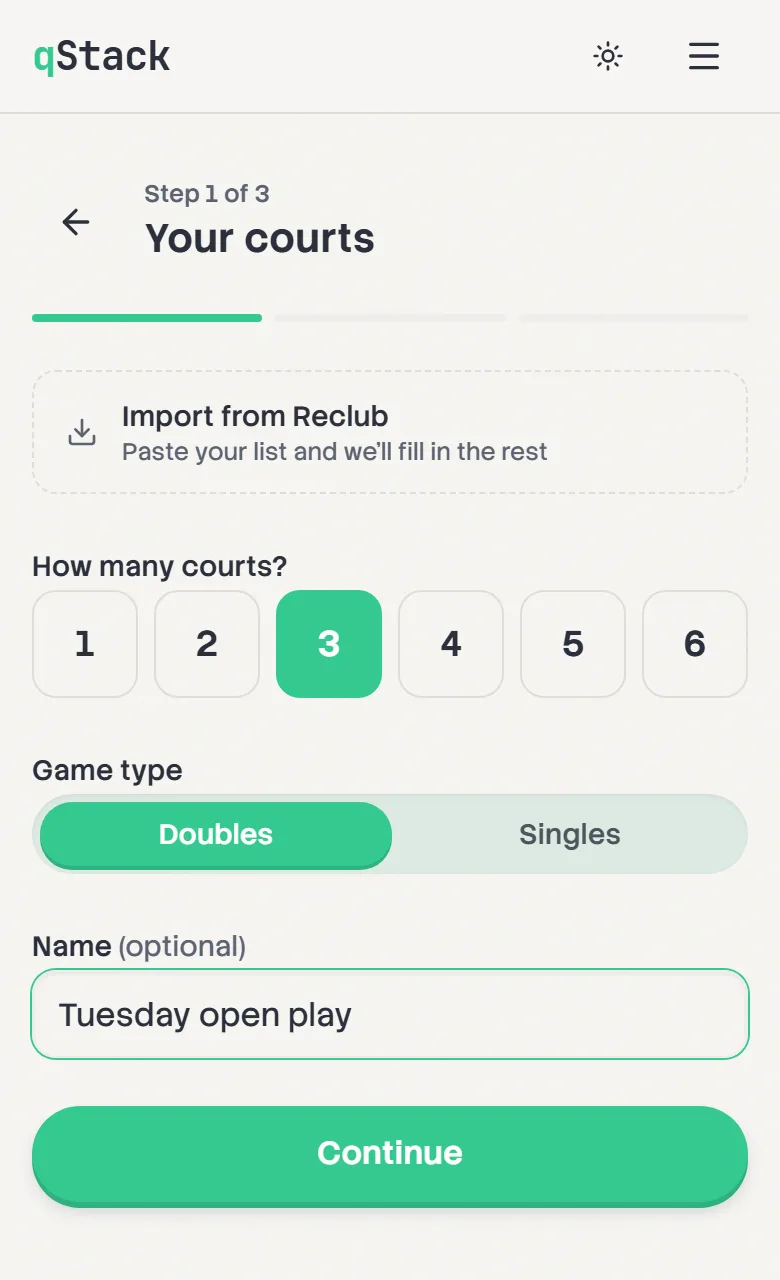
Pick how many courts you have, from 1 to 6, and choose Doubles or Singles. Give the session a name if you like, such as "Tuesday night open play". It's optional, but it helps when you run more than one board. Tap Continue.
Have a Reclub list? Tap Import from Reclub here and the names, the session name and the court count can all come from it. See the Reclub tutorial.
- 3
Matching style
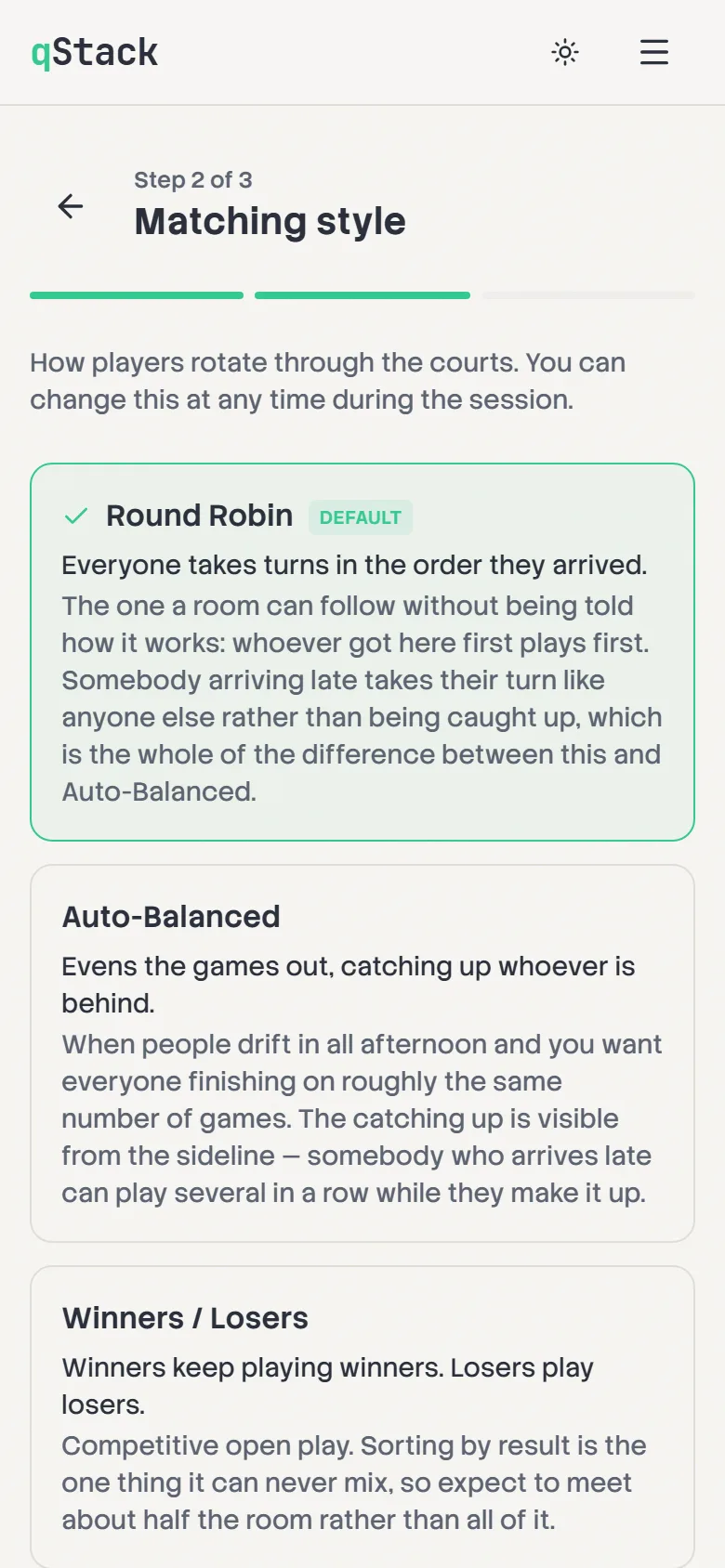
Choose how players rotate. Round Robin is the default and the easiest for a room to follow: whoever got there first plays first. Leave Record who won on if you want a real leaderboard, or turn it off so a game finishes with a single tap on Done.
You can change both at any time during the session from Queue settings.
- 4
Add players
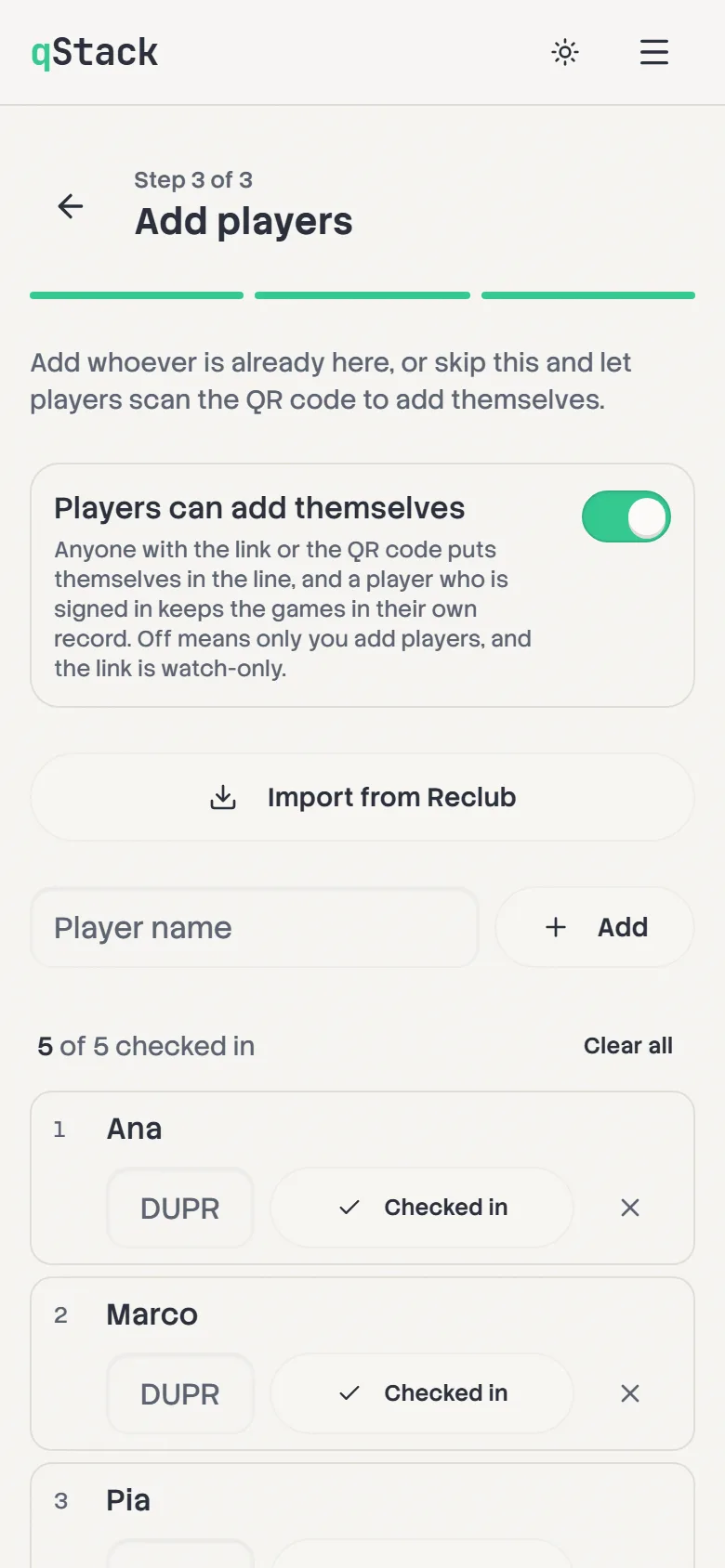
Type each name and tap Add. Players you type in start checked in. Use Check in for anyone on the list who hasn't arrived yet. Leave Players can add themselves on and people can join from their own phones instead.
Ratings are optional, between 2.0 and 7.0. They only matter for Skill Separated.
- 5
Start the board
The button tells you who's going in: Start with 12, or Start with 10 of 12 if some aren't checked in yet. They stay on the roster and join the line as soon as you check them in on the board.
- 6
Put the first game on
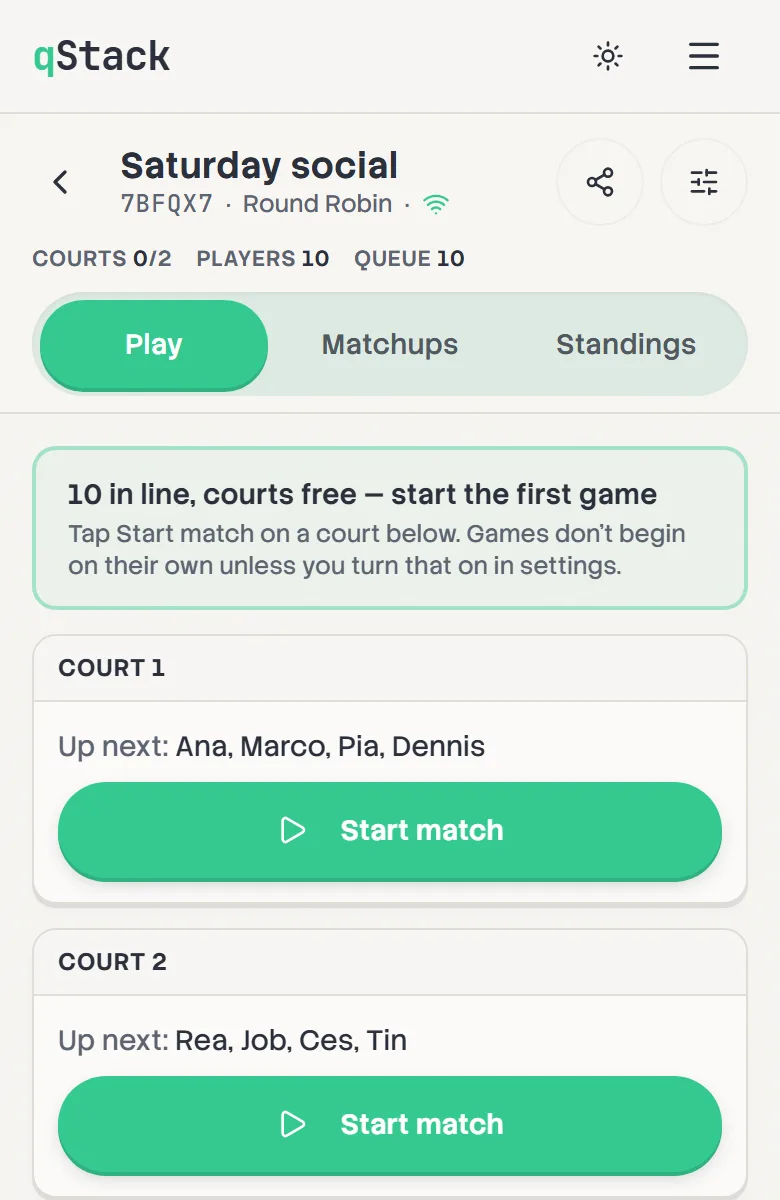
On a new board, games don't begin on their own. Each court shows who's up next. Tap Start match when they're ready. Courts need a full game's worth of free players: four for doubles, two for singles.
Would you rather the courts filled themselves? Turn on Start matches automatically in Queue settings.
- 7
Record the result
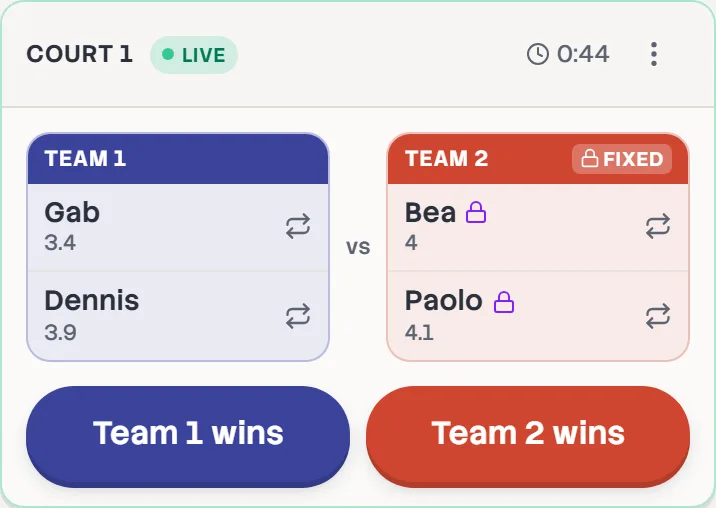
When a game ends, tap Team 1 wins or Team 2 wins (or Done if you're not recording winners). The four go back into the line, and the next group is ready for that court.