After the session
End the night and keep the record
End the queue, save it to your account, and find it again later.
For hosts2 min
- 1
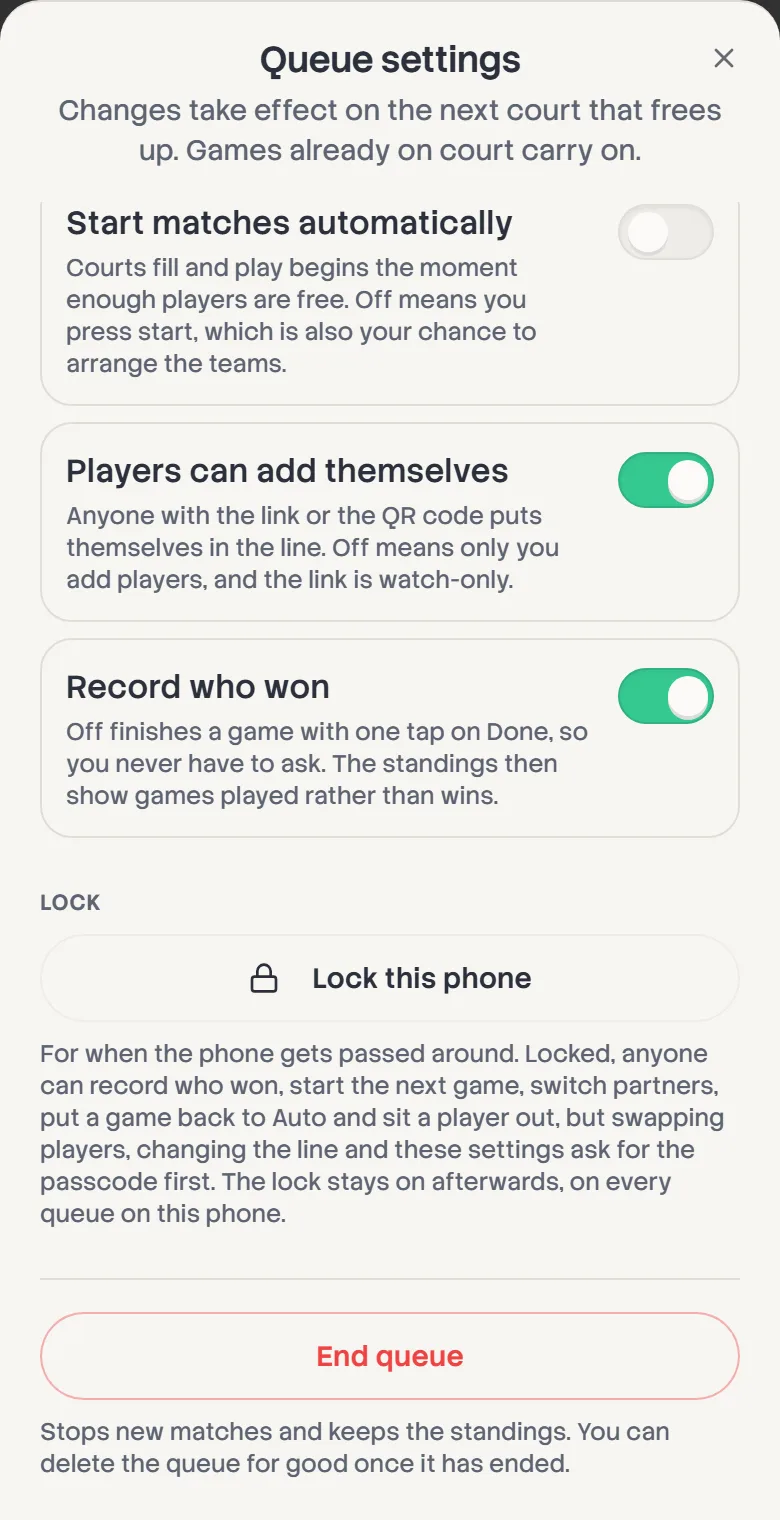
End the queue
In Queue settings, tap End queue. Any game still on court is cancelled, and the final standings and results stay. The link still opens for anyone who has it.
- 2
Save it to your account
Hosting as a guest? Tap Log in on the start page. Every board on this phone, including any you were lent as a co-host, is saved to your account and follows you to any device.
- 3
Find past sessions
Signed in, the start page lists your Past queues. Open one to see its standings. Your own games across every session are under qStack Record in your Courtogo dashboard.
- 4
Run it again next week
Same open play every week? Tap Run it again on last week's board once it has ended, or Run again beside it in Past queues. Setup opens on the players step with the courts, the style and every name from last time. Tick off who turned up and start.
The start page also offers last week's session as a card for a couple of weeks afterwards, so it's one tap from there too.
- 5
Delete it for good
Once it's ended, the board's owner can delete it from Queue settings. That removes the players, the games and the standings. Your saved players stay.
Walked away without ending it? A board ends itself once it's a day old and has had no games for twelve hours. Nothing is deleted.